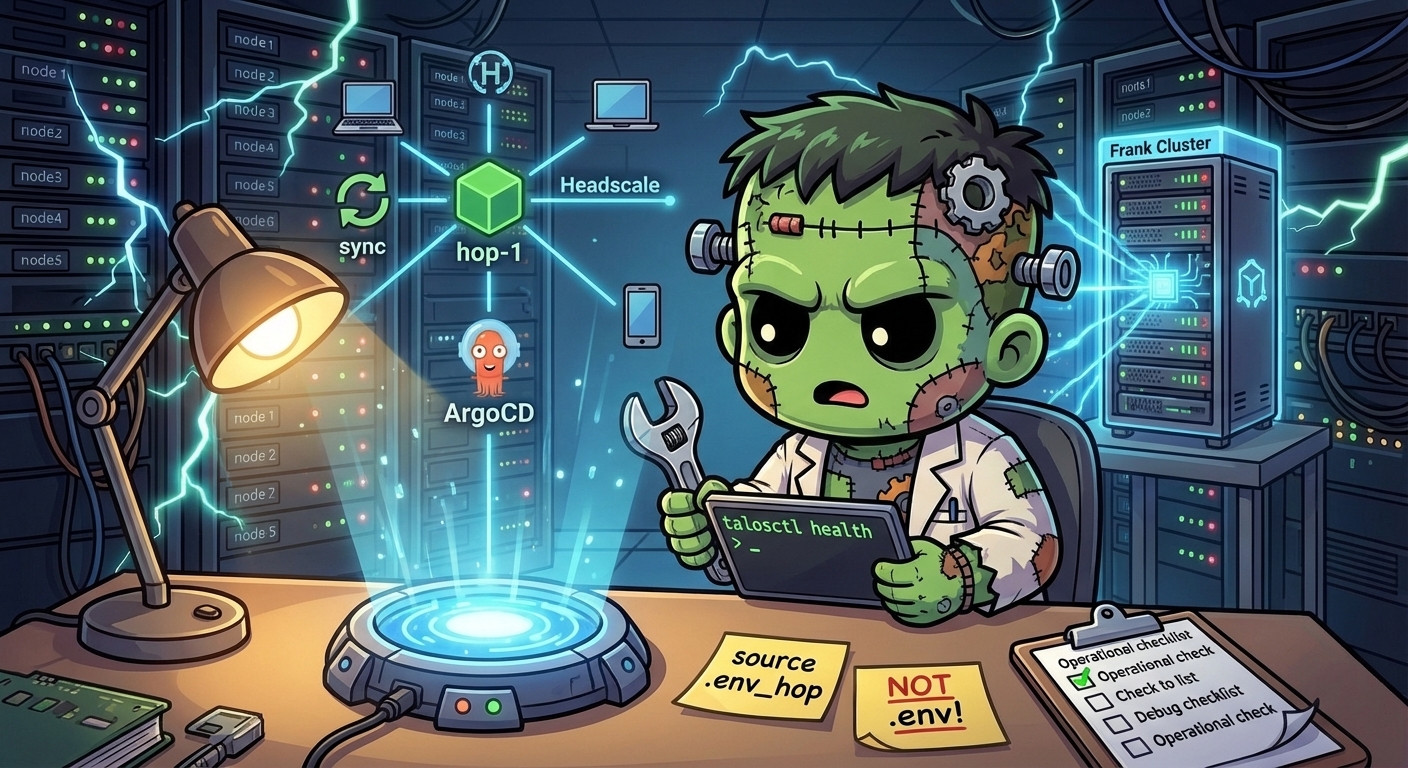
Operating on Hop — Single-Node Talos Edge Cluster
This is the operational companion to Hopping Through the Portal. That post covers the deployment story and the ten deviations. This one covers the commands you actually type to manage Hop — a very different operational profile from Frank.
Key Differences from Frank
Hop is a single-node, standalone-talosctl cluster. Almost everything about its operational model differs from Frank:
| Concern | Frank | Hop |
|---|---|---|
| Talos management | Omni (UI + API) | talosctl directly |
| CNI | Cilium (eBPF, L2 LB) | Flannel (default) |
| Storage | Longhorn (distributed) | Static PVs on Hetzner Volume |
| Nodes | 7 (HA control plane) | 1 (control-plane + worker) |
| Ingress | Cilium L2 LoadBalancer | Caddy hostPort (80/443) |
| Remote access | LAN only | Tailscale mesh + public endpoints |
The critical operational difference: Hop has no redundancy. A node reboot means all services are down. A botched Talos upgrade means you’re rebuilding from the Packer snapshot. Treat Hop as a pet, not cattle.
Environment Setup
Critical: Hop and Frank use separate env files that export the same KUBECONFIG variable. Sourcing the wrong one points every command at the wrong cluster.
# Hop operations — ALWAYS use this
source .env_hop

# Verify you're targeting the right cluster
kubectl get nodes
# Expected: hop-1   Ready   control-plane   ...
Never run source .env in a terminal where you intend to work on Hop. If you’re unsure which cluster you’re targeting:
kubectl config current-context
# Should show: admin@hop
For talosctl, also set the config path:
export TALOSCONFIG=$(pwd)/clusters/hop/talosconfig/talosconfig
talosctl -n $HOP_IP version
Observing State
Cluster Health
Talos health check works the same as on Frank, but you only have one node:
talosctl -n $HOP_IP healthThis validates etcd, API server, kubelet, and node readiness. Since there’s no HA, any failure here means the entire cluster is down.
$ talosctl -n $HOP_IP health 2>&1 | head -20
discovered nodes: ["91.99.8.121"]
waiting for etcd to be healthy: ...
waiting for etcd to be healthy: OK
waiting for etcd members to be consistent across nodes: ...
waiting for etcd members to be consistent across nodes: OK
waiting for etcd members to be control plane nodes: ...
waiting for etcd members to be control plane nodes: OK
waiting for apid to be ready: ...
waiting for apid to be ready: OK
waiting for all nodes memory sizes: ...
waiting for all nodes memory sizes: OK
waiting for all nodes disk sizes: ...
waiting for all nodes disk sizes: OK
waiting for no diagnostics: ...
waiting for no diagnostics: OK
waiting for kubelet to be healthy: ...
waiting for kubelet to be healthy: OK
waiting for all nodes to finish boot sequence: ...
waiting for all nodes to finish boot sequence: OK
waiting for all k8s nodes to report: ...

$ kubectl get nodes -o wide
NAME    STATUS   ROLES           AGE   VERSION   INTERNAL-IP   EXTERNAL-IP   OS-IMAGE          KERNEL-VERSION   CONTAINER-RUNTIME
hop-1   Ready    control-plane   32d   v1.34.1   91.99.8.121   <none>        Talos (v1.12.5)   6.18.15-talos    containerd://2.1.6
kubectl get nodes -o wide
# hop-1 should be Ready

kubectl get pods -A
# All pods should be Running/Completed — no Pending or CrashLoopBackOff
ArgoCD Applications
argocd app list --port-forward --port-forward-namespace argocdAll applications should show Synced and Healthy. If any show Degraded, check the specific app:
argocd app get <app-name> --port-forward --port-forward-namespace argocdService Health Checks
Verify each service is actually responding (not just that pods are Running):
# Public endpoints (from anywhere)
curl -sI https://headscale.hop.derio.net | head -3
curl -sI https://blog.derio.net/frank/ | head -3

# Mesh-only endpoints (from a mesh client)
curl -sI https://headplane.hop.derio.net | head -3
# Should return 200 from mesh, 403 from public

# From inside the cluster (verify internal routing)
kubectl -n headscale-system exec deploy/headscale -- wget -qO- 127.0.0.1:8080/health
kubectl -n headscale-system exec deploy/headplane -- wget -qO- 127.0.0.1:3000/admin/
Important: Headplane binds IPv4 only. Use 127.0.0.1, not localhost (which resolves to ::1 in Alpine containers).
Headscale Operations
Managing Users and Nodes
# List users
kubectl -n headscale-system exec deploy/headscale -- headscale users list

# Create a user
kubectl -n headscale-system exec deploy/headscale -- headscale users create <username>

# List registered nodes
kubectl -n headscale-system exec deploy/headscale -- headscale nodes list

# Create a pre-auth key (for registering new devices)
kubectl -n headscale-system exec deploy/headscale -- \
  headscale preauthkeys create --user <username> --reusable --expiration 24h
Adding a Node to the Tailscale Network
Adding a device to the Hop mesh is a two-step process: create a pre-auth key on the server side, then register the client.
Step 1 — Create a user (if needed) and generate a pre-auth key:
source .env_hop

# Create a user for the device (skip if user already exists)
kubectl -n headscale-system exec deploy/headscale -- headscale users create <username>

# Generate a pre-auth key
kubectl -n headscale-system exec deploy/headscale -- \
  headscale preauthkeys create --user <username> --reusable --expiration 24h
The --reusable flag lets you register multiple devices with the same key (useful for a batch of machines). Omit it for single-use keys. The --expiration controls how long the key is valid — after that, it can’t be used for new registrations but already-registered nodes stay connected.
Step 2 — Register the client device:
On the device you want to add (macOS, Linux, Windows, iOS, Android — anything that runs Tailscale):
# Linux / macOS
tailscale up --login-server https://headscale.hop.derio.net --authkey <PREAUTH_KEY>

# If Tailscale was previously connected to a different control server, reset first:
tailscale logout
tailscale up --login-server https://headscale.hop.derio.net --authkey <PREAUTH_KEY>
On mobile devices (iOS/Android), you can set the control server URL in the Tailscale app settings before signing in. Enter https://headscale.hop.derio.net as the control server and use the pre-auth key.
Step 3 — Verify registration:
# From the Hop cluster — confirm the node appears
kubectl -n headscale-system exec deploy/headscale -- headscale nodes list

# From the new client — confirm connectivity
tailscale status
tailscale ping <another-mesh-node>
The new node gets a 100.64.0.x address from Headscale’s IP pool. MagicDNS automatically makes it reachable by name (e.g., device-name.mesh.hop.derio.net).
$ kubectl -n headscale-system exec deploy/headscale -- headscale users list

ID | Name | Username | Email | Created
1  |      | default  |       | 2026-03-18 22:32:51

$ kubectl -n headscale-system exec deploy/headscale -- headscale nodes list

ID | Hostname       | Name           | MachineKey | NodeKey | User    | IP addresses                  | Ephemeral | Last seen           | Expiration | Connected | Expired
1  | laptop         | laptop         | [……]       | [……]    | default | 100.64.0.1, fd7a:115c:a1e0::1 | false     | <redacted>          | N/A        | online    | no
3  | hop-1          | hop-1          | [……]       | [……]    | default | 100.64.0.4, fd7a:115c:a1e0::4 | false     | <redacted>          | N/A        | online    | no
4  | raspi-vlan10-D | raspi-vlan10-d | [……]       | [……]    | default | 100.64.0.2, fd7a:115c:a1e0::2 | false     | <redacted>          | N/A        | online    | no
5  | raspi-vlan10-E | raspi-vlan10-e | [……]       | [……]    | default | 100.64.0.3, fd7a:115c:a1e0::3 | false     | <redacted>          | N/A        | online    | no
6  | phone          | phone          | [……]       | [……]    | default | 100.64.0.7, fd7a:115c:a1e0::7 | false     | <redacted>          | N/A        | online    | no

$ kubectl -n headscale-system exec deploy/headscale -- headscale routes list

ID | Node           | Prefix          | Advertised | Enabled | Primary
1  | raspi-vlan10-d | ::/0            | true       | true    | -
2  | raspi-vlan10-d | 0.0.0.0/0       | true       | true    | -
3  | raspi-vlan10-e | 0.0.0.0/0       | true       | true    | -
4  | raspi-vlan10-e | ::/0            | true       | true    | -
5  | raspi-vlan10-e | 192.168.10.0/24 | true       | true    | false
6  | raspi-vlan10-e | 192.168.50.0/24 | true       | true    | false
7  | raspi-vlan10-e | 192.168.55.0/24 | true       | true    | false
8  | raspi-vlan10-d | 192.168.10.0/24 | true       | true    | true
9  | raspi-vlan10-d | 192.168.50.0/24 | true       | true    | true
10 | raspi-vlan10-d | 192.168.55.0/24 | true       | true    | true
Removing a node:
# List nodes to find the ID
kubectl -n headscale-system exec deploy/headscale -- headscale nodes list

# Delete by ID
kubectl -n headscale-system exec deploy/headscale -- headscale nodes delete --identifier <NODE_ID>
Registering a Subnet Router / Exit Node
A subnet router advertises LAN subnets to the mesh, making homelab services reachable from any mesh client. An exit node routes all internet traffic through itself. The Raspberry Pi subnet routers serve both roles.
Prerequisites on the device:
# Enable IP forwarding (required for routing — persistent across reboots)
sudo sysctl -w net.ipv4.ip_forward=1
echo 'net.ipv4.ip_forward = 1' | sudo tee /etc/sysctl.d/99-ip-forward.conf
Step 1 — Register the device with subnet routes, exit node, and tag:
sudo tailscale up \
  --login-server=https://headscale.hop.derio.net \
  --advertise-exit-node \
  --advertise-routes=192.168.10.0/24,192.168.50.0/24,192.168.55.0/24 \
  --advertise-tags=tag:subnet-router \
  --accept-dns=false \
  --hostname=$(hostname) \
  --authkey $HEADSCALE_PREAUTH_KEY
Key flags:
--advertise-routes— exposes these LAN subnets to all mesh clients--advertise-exit-node— offers this node as an exit node for tunneling all traffic--advertise-tags=tag:subnet-router— carries the tag with registration soautoApproversin the ACL policy auto-approves routes immediately--accept-dns=false— prevents MagicDNS from overriding the device’s OS-level DNS (the raspis need their local DNS to resolve internal hostnames)--authkey— pre-auth key from.env_hop(HEADSCALE_PREAUTH_KEY)
Step 2 — Tag the node (one-time, for existing nodes without the tag):
If the node was registered before --advertise-tags was added, apply the tag server-side:
source .env_hop
kubectl -n headscale-system exec deploy/headscale -- headscale nodes list
kubectl -n headscale-system exec deploy/headscale -- \
  headscale nodes tag --identifier <NODE_ID> --tags tag:subnet-router
Future re-registrations carry the tag automatically via --advertise-tags.
Step 3 — Verify routes are approved:
kubectl -n headscale-system exec deploy/headscale -- headscale routes listAll routes should show Enabled: true. With autoApprovers configured, no manual headscale routes enable is needed.
Step 4 — Use the exit node from another mesh client:
# Connect to the exit node
tailscale set --exit-node=<exit-node-hostname>

# Verify internet traffic routes through the exit node
curl ifconfig.me
# Should show the exit node's network's public IP

# Verify LAN access
ping 192.168.55.21  # Frank cluster mini-1

# Disconnect
tailscale set --exit-node=
Gotcha: --login-server must use the public URL (https://headscale.hop.derio.net), not the Kubernetes-internal service name (headscale.headscale-system.svc:8080). The internal name only resolves inside the Hop cluster’s pod network — from any external device, including Frank cluster nodes, it will hang indefinitely without error.
Gotcha: Without net.ipv4.ip_forward=1 on the device, exit node connections will appear to work (Tailscale reports connected) but all traffic will black-hole — ping google.com hangs silently.
Split DNS for Internal Domains
Headscale pushes split DNS configuration to all mesh clients. Queries for internal domains go to the home DNS servers; everything else uses public DNS.
| Domain | Nameservers | Purpose |
|---|---|---|
*.lab.derio.net | 192.168.10.11, 192.168.10.12 | Home lab services |
*.frank.derio.net | 192.168.10.11, 192.168.10.12 | Frank cluster services |
| Everything else | 1.1.1.1, 8.8.8.8 | Public DNS |
The home DNS servers (192.168.10.11/12) are on the 192.168.10.0/24 subnet, which is advertised by the subnet routers. Any mesh client can reach them — you don’t need to be using an exit node.
Verify split DNS from a mesh client:
# Should resolve via home DNS
dig litellm.frank.derio.net

# Should resolve via public DNS
dig google.com
Limitation: If both Raspberry Pi subnet routers are offline, mesh clients lose both the subnet routes and DNS resolution for *.lab.derio.net and *.frank.derio.net. This is consistent — the services themselves are also unreachable without the subnet routes.
To add more internal domains to split DNS, edit the Headscale ConfigMap’s dns.nameservers.split section and restart Headscale:
kubectl -n headscale-system rollout restart deploy/headscaleAdding a Mesh-Only Service
When adding a new mesh-only domain to Hop, three things need updating:
- Headscale extra_records — add the domain → Tailscale IP mapping to the ConfigMap
- Caddy Caddyfile — add a
@meshhandler block for the new domain - Cloudflare DNS — add an A record pointing the domain to Hop’s public IP (for the 403 response)
# In headscale ConfigMap, under dns.extra_records:
- name: newservice.hop.derio.net
  type: A
  value: 100.64.0.4  # hop-1's Tailscale IP
After updating the ConfigMap, restart Headscale to pick up DNS changes:
kubectl -n headscale-system rollout restart deploy/headscaleHeadscale Backup and Recovery
A CronJob runs daily at 3 AM UTC, backing up the SQLite database:
# Check backup job status
kubectl -n headscale-system get cronjobs
kubectl -n headscale-system get jobs --sort-by=.metadata.creationTimestamp

# List backups
kubectl -n headscale-system exec deploy/headscale -- ls -la /var/lib/headscale/backups/

# Manual backup
kubectl -n headscale-system exec deploy/headscale -- \
  sqlite3 /var/lib/headscale/db.sqlite ".backup /var/lib/headscale/backups/manual-$(date +%F).db"
Backups are stored on the Hetzner Volume (persistent across pod restarts). Retention is 7 days.
Caddy Operations
TLS Certificate Status
Caddy manages TLS automatically via Cloudflare DNS challenge. To check certificate status:
kubectl -n caddy-system logs deploy/caddy | grep -i "tls\|cert\|acme"The Cloudflare API token is stored as a Kubernetes Secret (caddy-cloudflare). If TLS stops working, check the token hasn’t expired or been emptied:
# Check the token exists and has a value (shows last 4 chars only)
kubectl -n caddy-system get secret caddy-cloudflare -o jsonpath='{.data.api-token}' | base64 -d | tail -c 4
# If empty, recreate:
kubectl -n caddy-system delete secret caddy-cloudflare
kubectl -n caddy-system create secret generic caddy-cloudflare \
  --from-literal=api-token=<YOUR_CLOUDFLARE_API_TOKEN>
Gotcha: Running pods don’t detect secret changes — env vars from secretKeyRef are injected at pod creation and never refreshed. A pod can keep running with a valid token long after the secret is emptied or deleted. You’ll only discover the problem on the next rollout restart.
Reloading Caddy Config
After editing the Caddyfile ConfigMap:
kubectl -n caddy-system rollout restart deploy/caddyThe Caddy Deployment uses strategy: Recreate (not RollingUpdate) because it binds host ports 80 and 443. On a single-node cluster, RollingUpdate would deadlock — the new pod can’t bind the ports while the old pod holds them. Recreate kills the old pod first, causing ~5 seconds of downtime during restarts.
Debugging Access Issues
If a mesh-only service returns 403 when it shouldn’t:
# Check if the client has a mesh IP
tailscale ip -4
# Should return 100.64.0.x

# Check if Caddy sees the mesh IP
kubectl -n caddy-system logs deploy/caddy | grep "headplane\|remote_ip"

# Verify DNS resolution from the client
dig headplane.hop.derio.net
# From mesh: should resolve to 100.64.0.4
# From public: should resolve to Hop's public IP
If DNS resolves to the public IP from a mesh client, Headscale’s MagicDNS isn’t active. Check that the client is using Headscale as its DNS:
tailscale status
# Verify "exit node" is not set (overrides DNS)
Talos Operations
Upgrading Talos
Hop upgrades are manual (no Omni to orchestrate). This is a service-impacting operation — all pods stop during the reboot.
# Check current version
talosctl -n $HOP_IP version

# Stage the upgrade (downloads image, does not reboot yet)
talosctl -n $HOP_IP upgrade --image ghcr.io/siderolabs/installer:<NEW_VERSION> --stage

# Reboot to apply
talosctl -n $HOP_IP reboot
After reboot, wait for the node to come back:
talosctl -n $HOP_IP health     # Wait until all checks pass
kubectl get nodes              # hop-1 should be Ready
kubectl get pods -A            # All pods should recover
Expected downtime: 3-5 minutes for the reboot cycle.
Applying Config Changes
Talos config patches must be combined into a single talosctl apply-config invocation. You can’t apply patches incrementally — each --config-patch replaces the previous one.
# View current config
talosctl -n $HOP_IP get machineconfig -o yaml

# Apply updated config (combines base + patches)
talosctl -n $HOP_IP apply-config --file controlplane.yaml
Node Recovery
If hop-1 becomes unreachable:
- Check Hetzner console —
hcloud server status hop-1 - Try talosctl via public IP —
talosctl -n <PUBLIC_IP> health(TCP 50000 is open) - Power cycle —
hcloud server reset hop-1(hard reboot) - Rebuild from snapshot — last resort; PV data survives on the Hetzner Volume
Blog Operations
Redeploying the Blog
The blog container rebuilds automatically on push to main (GitHub Actions). To manually trigger:
# From the repo root
cd blog && hugo --minify  # Verify build succeeds locally

# The CI pipeline builds and pushes ghcr.io/derio-net/frank-blog:latest
# To force a new pull on Hop:
kubectl -n blog-system rollout restart deploy/blog
Checking Blog Content
# Verify the container is serving the expected content
kubectl -n blog-system exec deploy/blog -- ls /usr/share/caddy/frank/
# Should show index.html and the post directories
Storage Operations
Hetzner Volume Health
# Check volume is attached
hcloud volume list
# hop-data should show "attached to hop-1"

# Check mount inside Talos
talosctl -n $HOP_IP mounts | grep hop-data
# Should show /var/mnt/hop-data

# Check PVs are bound
kubectl get pv
# headscale-data and caddy-data should be Bound
Disk Space
The Hetzner Volume is 10GB. Monitor usage:
talosctl -n $HOP_IP usage /var/mnt/hop-data/Headscale’s SQLite database is small (< 1MB). Caddy’s TLS certificates and OCSP staples are the main consumers (typically < 50MB). If space becomes an issue, expand the volume in Hetzner dashboard (no downtime).
Emergency Procedures
Complete Cluster Rebuild
If hop-1 is unrecoverable:
# 1. Create new server from Talos snapshot
hcloud server create --name hop-1 --type cx23 --location fsn1 \
  --image <SNAPSHOT_ID> --volume hop-data

# 2. Apply Talos config
talosctl apply-config --insecure -n <NEW_IP> --file controlplane.yaml
talosctl bootstrap -n <NEW_IP>

# 3. Wait for cluster
talosctl -n <NEW_IP> health

# 4. Bootstrap ArgoCD
source .env_hop  # Update HOP_IP if changed
helm install argocd argo/argo-cd -n argocd --create-namespace \
  -f clusters/hop/apps/argocd/values.yaml
kubectl apply -f <(helm template root clusters/hop/apps/root/)

# 5. Re-create secrets (not in Git)
kubectl -n caddy-system create secret generic caddy-cloudflare-token \
  --from-literal=CF_API_TOKEN=<token>
kubectl -n headscale-system create secret generic tailscale-auth \
  --from-literal=TS_AUTHKEY=<key>

# 6. Update DNS if IP changed
# Update Cloudflare A records for *.hop.derio.net and blog.derio.net
The Hetzner Volume (with Headscale DB and Caddy certs) survives server deletion — reattach it to the new server. Headscale clients will automatically reconnect once the control server is back.
Mesh Recovery Without Mesh Access
If the Tailscale mesh is down and you need to reach Hop:
# Use the public IP directly (mTLS-protected ports)
talosctl -n <PUBLIC_IP> -e <PUBLIC_IP> health
kubectl --kubeconfig clusters/hop/talosconfig/kubeconfig get pods -A
TCP 6443 and 50000 are open on the Hetzner firewall specifically for this scenario. Both require client certificates from the talosconfig/kubeconfig — unauthenticated access is impossible.
References
- Talos Linux Operations — Official operations guide
- Headscale CLI Reference — Headscale command documentation
- Caddy Documentation — Caddy server configuration
- Hetzner Cloud CLI —
hcloudcommand reference