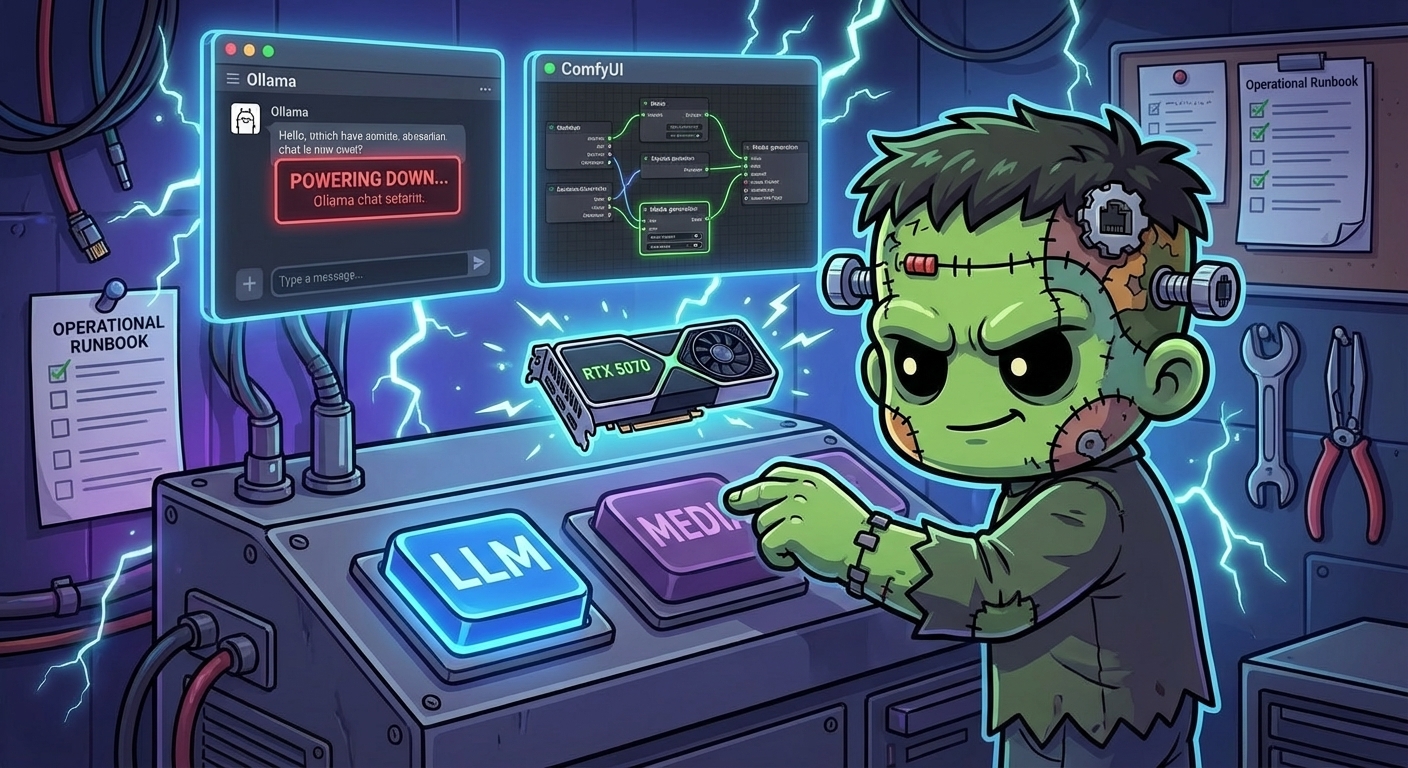
Operating on Media Generation
This is the operational companion to Media Generation — ComfyUI and GPU Time-Sharing. That post explains the architecture and deployment. This one covers the day-to-day workflow for switching GPU workloads, managing diffusion models, and troubleshooting.
What “Healthy” Looks Like
The media generation stack is healthy when:
- GPU Switcher at
192.168.55.214:8080shows the dashboard and displays correct workload status - Exactly one GPU workload has
replicas: 1(either Ollama or ComfyUI, never both) - The other GPU workload has
replicas: 0 - When ComfyUI is active, its UI is accessible at
192.168.55.213:8188
Observing State
GPU Switcher Dashboard
The fastest way to check the current state: open http://192.168.55.214:8080 in a browser. The dashboard shows which workload owns the GPU and the pod status of each.
From the Command Line
# Which GPU workload is active?
kubectl get deploy -n ollama ollama -o jsonpath='{.spec.replicas}'
# 1 = active, 0 = inactive
kubectl get deploy -n comfyui comfyui -o jsonpath='{.spec.replicas}'

# Check all GPU-related pods
kubectl get pods -n ollama -o wide
kubectl get pods -n comfyui -o wide
kubectl get pods -n gpu-switcher -o wide

# GPU memory usage (only works when a GPU pod is running)
kubectl exec -n ollama deploy/ollama -- nvidia-smi 2>/dev/null || \
kubectl exec -n comfyui deploy/comfyui -- nvidia-smi 2>/dev/null || \
echo "No GPU workload is running"
ArgoCD Status
Both ComfyUI and Ollama have ignoreDifferences on spec.replicas, so ArgoCD will always show Synced regardless of current replica count. This is by design — the GPU Switcher is the authority for replica state.
argocd app get comfyui --port-forward --port-forward-namespace argocd
argocd app get gpu-switcher --port-forward --port-forward-namespace argocd
Routine Operations
Switching GPU Workloads
Via the dashboard (recommended):
- Open
http://192.168.55.214:8080 - Click Activate on the workload you want
- Wait ~30 seconds for the pod to start
Via kubectl (if the dashboard is down):
# Activate ComfyUI, deactivate Ollama
kubectl scale deploy/ollama -n ollama --replicas=0
kubectl scale deploy/comfyui -n comfyui --replicas=1

# Activate Ollama, deactivate ComfyUI
kubectl scale deploy/comfyui -n comfyui --replicas=0
kubectl scale deploy/ollama -n ollama --replicas=1

# Emergency: deactivate everything
kubectl scale deploy/ollama -n ollama --replicas=0
kubectl scale deploy/comfyui -n comfyui --replicas=0
Never scale both to 1 simultaneously. Both request
nvidia.com/gpu: 1— the second pod will stayPendinguntil the first releases the GPU.
Downloading Models (First Time)
After activating ComfyUI for the first time, the PVC is empty. Download models interactively:
# Ensure ComfyUI is active
kubectl get pods -n comfyui

# Exec into the pod
kubectl exec -it -n comfyui deploy/comfyui -- bash

# Inside the pod:
cd /workspace/ComfyUI/models

# LTX-2.3 video model (~5GB)
wget -P video_models/ \
  https://huggingface.co/Lightricks/LTX-Video/resolve/main/ltx-video-2b-v0.9.5.safetensors

# SDXL base image model (~7GB)
wget -P checkpoints/ \
  https://huggingface.co/stabilityai/stable-diffusion-xl-base-1.0/resolve/main/sd_xl_base_1.0.safetensors
Alternatively, use ComfyUI Manager (if available in the image) via the web UI at http://192.168.55.213:8188 → Manager → Install Models.
Checking Installed Models
# List checkpoint models
kubectl exec -n comfyui deploy/comfyui -- ls -lh /workspace/ComfyUI/models/checkpoints/

# List video models
kubectl exec -n comfyui deploy/comfyui -- ls -lh /workspace/ComfyUI/models/video_models/

# Check PVC usage (100Gi allocated)
kubectl exec -n comfyui deploy/comfyui -- df -h /workspace
Testing ComfyUI
# Health check (when active)
curl -s http://192.168.55.213:8188/system_stats | python3 -m json.tool

# Check available models via API
curl -s http://192.168.55.213:8188/object_info/CheckpointLoaderSimple | python3 -m json.tool | head -30
Debugging
GPU Switcher Not Responding
# Check pod status
kubectl get pods -n gpu-switcher -o wide
kubectl describe pod -n gpu-switcher -l app.kubernetes.io/name=gpu-switcher

# Check logs
kubectl logs -n gpu-switcher deploy/gpu-switcher --tail=50

# Check RBAC (the switcher needs cross-namespace Deployment patch access)
kubectl auth can-i patch deployments -n ollama --as=system:serviceaccount:gpu-switcher:gpu-switcher
kubectl auth can-i patch deployments -n comfyui --as=system:serviceaccount:gpu-switcher:gpu-switcher
ComfyUI Pod Stuck in Pending
# Check if another GPU workload is holding the GPU
kubectl get pods -A -o wide | grep gpu-1

# Check GPU allocation on the node
kubectl describe node gpu-1 | grep -A 5 "nvidia.com/gpu"
If Ollama is still running (replicas: 1), scale it down first. The GPU is a discrete resource — Kubernetes won’t schedule two pods that each request nvidia.com/gpu: 1 on a node with only one GPU.
ComfyUI Image Pull Errors
The ComfyUI image is large. If pulls fail:
# Check events
kubectl describe pod -n comfyui -l app.kubernetes.io/name=comfyui | tail -20

# Verify image exists and is accessible
docker manifest inspect ghcr.io/ai-dock/comfyui:latest
GPU Switcher Image Pull Errors
The GPU Switcher image must have amd64 platform in its OCI manifest. If you see “no match for platform in manifest”:
# Check manifest
docker manifest inspect ghcr.io/derio-net/gpu-switcher:v0.1.1

# Rebuild with correct platform (from arm64 Mac)
cd apps/gpu-switcher/app
CGO_ENABLED=0 GOOS=linux GOARCH=amd64 go build -ldflags="-s -w" -o gpu-switcher-linux-amd64 .
docker buildx build --platform linux/amd64 -f Dockerfile.release \
  -t ghcr.io/derio-net/gpu-switcher:v0.1.2 --push .
ArgoCD Reverting Replica Count
If ArgoCD keeps scaling replicas back to the Git value, check that ignoreDifferences is configured on the Application CR:
kubectl get app -n argocd comfyui -o yaml | grep -A 5 ignoreDifferences
kubectl get app -n argocd ollama -o yaml | grep -A 5 ignoreDifferences
Both should have /spec/replicas in their jsonPointers list. If missing, the Application CR template needs updating.
Model Out of VRAM
If ComfyUI crashes or produces errors during generation:
# Check GPU memory while ComfyUI is running
kubectl exec -n comfyui deploy/comfyui -- nvidia-smi

# Check ComfyUI logs for OOM
kubectl logs -n comfyui deploy/comfyui --tail=100 | grep -i "out of memory\|OOM\|cuda"
LTX-2.3 needs 8-12GB of the 16GB VRAM. If loading multiple models or using high resolutions, VRAM can be exhausted. Restart the pod to clear GPU memory:
kubectl delete pod -n comfyui -l app.kubernetes.io/name=comfyuiQuick Reference
| Command | What It Does |
|---|---|
http://192.168.55.214:8080 | GPU Switcher dashboard |
http://192.168.55.213:8188 | ComfyUI web UI (when active) |
kubectl scale deploy/comfyui -n comfyui --replicas=1 | Activate ComfyUI |
kubectl scale deploy/ollama -n ollama --replicas=0 | Deactivate Ollama |
kubectl get pods -n comfyui | Check ComfyUI pod status |
kubectl exec -n comfyui deploy/comfyui -- nvidia-smi | GPU memory usage |
kubectl logs -n comfyui deploy/comfyui | ComfyUI server logs |
kubectl logs -n gpu-switcher deploy/gpu-switcher | GPU Switcher logs |
curl http://192.168.55.213:8188/system_stats | ComfyUI health check |